Tuesday, February 28, 2012


Introduction

The new Cisco Unified Computing System (UCS) Cisco Blade Server B440 M1 allows for Virtual Interface Adapter placement in UCS Manager (UCSM) service profiles. This is known as Virtual Host Interface Placement Assignment.
Virtual Host Interface Placement Assignment specifies how vNICs and vHBAs are placed on physical network interface (mezzanine) cards in a server hardware configuration independent of one another. When a logical server is associated to a blade, a Virtual Interface Adapter is assigned to a physical adapter.
With the new B440 M1 blade server there are two Virtual Interface Adapters that can assign vNICs/vHBAs to a specific Virtual Interface Adapter (1 to 2). If a vNIC/vHBA is not assigned to a Virtual Interface Adapter, the Unified Computing Manager (UCM) applies a default policy based on pci bdf order. Further, UCSM gives you the ability to customize each individual Virtual Interface Adapter and to create Virtual Interface Adapter profiles that can be used after server blade implementation or recovery.

Prerequisites

Requirements

Cisco recommends that you have knowledge of these topics:
  • Cisco UCS 5108 Chassis
  • Cisco UCS 6100XP Fabric Interconnet with release 4.1(3)N2
  • Cisco UCS B440-M1 Blade Server
  • Cisco UCSM version 1.3

Components Used

The information in this document is based on these software and hardware versions:
  • Cisco UCS B440-M1 Blade Server
The information in this document was created from the devices in a specific lab environment. All of the devices used in this document started with a cleared (default) configuration. If your network is live, make sure that you understand the potential impact of any command.

Conventions

Refer to Cisco Technical Tips Conventions for more information on document conventions.

Background Information

Cisco UCSM allows you to define the B440-M1 10Gb mezzanine adapters, of which there are now four:
  • QLogic Schultz based CNA (M72KR-Q)
  • Emulex Tigershark based CNA (M72KR-E)
  • Intel Niantic based NIC (M61KR-I)
  • Broadcom Everest based NIC (M51KR-I)
The B440-M1 10Gb mezzanine adapters used for this document are Emulex-based CNA M72KR-E that supports two vHBAs/vNICs.
This is an example of a 2-slot (1 and 2) Interface Adapter with 2 HBAs and 2 NICs per Virtual Interface Adapter:
virtual-interface-adapter-01.gif
Note: Pictured above is a Cisco UCSM equipment view of the Emulex installed adapters.
The service profile also supports vNIC/vHBA placement in UCSM GUI, which allows for Virtual Interface Adapter properties configuration of selection preference:
  • All: Any vNIC/vHBA can be assigned to this Virtual Interface Adapter.
  • Assigned-Only: Only the explicitly assigned vNIC/vHBA can belong to this Virtual Interface Adapter.
  • Exclude-Dynamic: UCSM cannot assign dynamic vNICs to this Virtual Interface Adapter.
  • Exclude-Unassigned: UCSM cannot assign static (non dynamic) vNICs to this Virtual Interface Adapter.
The above selection preference options indicate how UCSM can use this Virtual Interface Adapter when it assigns a vNIC/vHBA.
Note: Numerical order means vNIC/vHBA can be ordered inside a Virtual Interface Adapter.
This shows selection preference where vCon1 is assigned all and vCon2 is assigned assigned-only:
virtual-interface-adapter-02.gif

Virtual Interface Adapter in Service Profile

Configuring the service profile for the Virtual Interface Adapter requires an understanding of how the software assigns the adapters for the B440-M1:
  • vNICs and vHBAs are assigned to the Virtual Interface Adapter implicitly by the user or automatically by UCSM during LS association.
  • During the LS association, the Virtual Interface Adapter is mapped to physical mezzanine cards.

vNIC/vHBA Placement

Default placement of vNICs/vHBAs:
  • If the 2 adapters are present, by default, the B440-M1 adapter assigns vNICs/vHBAs starting from the slot on the right (slot 1) and equally distributes the total number between the 2 adapters. For example: If you have 4 vNICs (i.e., 1, 2, 3, and 4), it will assign 1 and 2 on the slot 1 adapter and 3 and 4 on the slot 0 adapter.
Specific placement of vNICs/vHBAs:
  • If more control is needed on how to place a vNIC/vHBA to a specific adapter, you can use the concept of Virtual Interface Adapter .

Service Profile

Perform these steps:
  1. Creation of the service profile is not new to Cisco UCS and can be referenced in Configuring Service Profiles for details on creation.
  2. With Cisco UCSM during service profile creation, you can perform your desired Virtual Interface Adapter placement or use the Modify vNIC/vHBA Placement under Actions for both Network (vNICs) or Storage (vHBAs). Refer to Setting the vNIC/vHBA Placement for more details on service profile configuration of Virtual Interface Adapters.
This is an illustration of Virtual Interface Adapter placement for vNICs/vHBAs after service profile creation of CE-B440-M1-SP:
Network Modify vNIC Virtual Interface Adapter Placement
virtual-interface-adapter-03.gif
Storage Modify vHBA Virtual Interface Adapter Placement

virtual-interface-adapter-04.gif

Hardware Adapter Verification

This section describes how to verify Physical Adapters installed in a Cisco UCS 5108 chassis:
From the Equipment tab of UCSM, choose the appropriate interface card under the Interface Cards of the server. Refer to Managing Firmware for further UCSM GUI Equipment tab pane functions.
Adapter Hardware Identification
virtual-interface-adapter-05.gif

Service Profile Default and Selection of Virtual Interface Placement Interface Adapter Card 2

The Default Virtual Interface Placement section describes how to use the default and selection Virtual Interface Placement using the Cisco B440-M1 Emulex Adapter Interface Card 2 with UCSM.

Default Virtual Interface Placement

Perform these steps:
  1. Verify hardware for the B440-M1 Emulex Adapter Interface Card 2:
    1. Verify hardware for the B440-M1 Emulex Adapter.
      Identify Adapter Type for B440-M1 Interface Cards (slot1 and slot2)
      virtual-interface-adapter-06.gif
    2. Verify hardware for the B440-M1 Emulex Adapter details for Interface Card 2.
      Verifying Interface Adapter details for slot 2 Interface Card 2
      virtual-interface-adapter-07.gif
  2. Configure the service profile for the B440-M1 Emulex Adapter Interface Card 2:
  3. Verify the default virtual interface placement.

Create a Service Profile

Refer to Configuring Service Profiles for further details on service profile creation.
  1. Create a service profile for Interface Card 2.
  2. Create two vNICs for the service profile created.
    1. Server Profile created with default 2 vNICs

      virtual-interface-adapter-08.gif
    2. The below snapshot shows the order placement vCon 1 that has been assigned placement default Interface Card 1 slot 1 for the vNICs defined in the service profile.
      vNICs assigned to Interface Card 1
      virtual-interface-adapter-09.gif
      Pubs-B /org # scope service-profile server 1/7
      Pubs-B /org/service-profile # show vnic detail
      
      
      Name: vnic-emulex-a
          Fabric ID: A
          Dynamic MAC Addr: 00:25:B5:03:03:0B
          Desired Order: 1
          Actual Order: 1
          Desired VCon Placement: 1
          Actual VCon Placement: 1
          Equipment: sys/chassis-1/blade-7/adaptor-1/host-eth-1
      
      Name: vnic-emulex-b
          Fabric ID: B
          Dynamic MAC Addr: 00:25:B5:04:B2:07
          Desired Order: 2
          Actual Order: 2
          Desired VCon Placement: 1
          Actual VCon Placement: 1
          Equipment: sys/chassis-1/blade-7/adaptor-1/host-eth-2
      
  3. Verify vNIC default Virtual Interface Adapter placement.
    Default Virtual Interface Placement
    virtual-interface-adapter-10.gif
    Pubs-B /org # scope service-profile server 1/7
    
    Pubs-B /org/service-profile # show vnic detail
    
     Name: vnic-emulex-c
        Fabric ID: A
        Dynamic MAC Addr: 00:25:B5:00:A5:00
        Desired Order: 3
        Actual Order: 1
        Desired VCon Placement: Any
        Actual VCon Placement: 2
        Equipment: sys/chassis-1/blade-7/adaptor-2/host-eth-1
        
     Name: vnic-emulex-d
        Fabric ID: B
        Dynamic MAC Addr: 00:25:B5:00:00:00
        Desired Order: 4
        Actual Order: 2
        Desired VCon Placement: Any
        Actual VCon Placement: 2
        Equipment: sys/chassis-1/blade-7/adaptor-2/host-eth-2
    

Manual Virtual Interface Adapter Placement


  1. In order to use Cisco UCSM Modify vNICs/vHBAs Placement, refer to Setting the vNIC/vHBA Placement.
  2. Assign the new vNICs (vnic-emulex-c and vnic-emulex-d) to Interface Card 1 (Slot 1) from Slot 2 and assign vnic-emulex-a/b vNICs.
    1. This step verifies that vnic-emulex-c/d can be specified manually.
      virtual-interface-adapter-11.gif
    2. Reassign the vNICs placements.
      virtual-interface-adapter-12.gif
      vNIC:
      
          Name: vnic-emulex-a
          Fabric ID: A
          Dynamic MAC Addr: 00:25:B5:03:03:0B
          Desired Order: 1
          Actual Order: 1
          Desired VCon Placement: 2
          Actual VCon Placement: 2
          Equipment: sys/chassis-1/blade-7/adaptor-2/host-eth-1
      
          Name: vnic-emulex-b
          Fabric ID: B
          Dynamic MAC Addr: 00:25:B5:04:B2:07
          Desired Order: 2
          Actual Order: 2
          Desired VCon Placement: 2
          Actual VCon Placement: 2
          Equipment: sys/chassis-1/blade-7/adaptor-2/host-eth-2
      
          Name: vnic-emulex-c
          Fabric ID: A
          Dynamic MAC Addr: 00:25:B5:00:A5:00
          Desired Order: 1
          Actual Order: 1
          Desired VCon Placement: 1
          Actual VCon Placement: 1
          Equipment: sys/chassis-1/blade-7/adaptor-1/host-eth-1
      
        Name: vnic-emulex-d
          Fabric ID: B
          Dynamic MAC Addr: 00:25:B5:00:00:00
          Desired Order: 2
          Actual Order: 2
          Desired VCon Placement: 1
          Actual VCon Placement: 1
          Equipment: sys/chassis-1/blade-7/adaptor-1/host-eth-2
      
      Pubs-B /org/service-profile # show vcon expand detail
      
      Virtual Network Interface:
          Virtual Network Interface ID: 1 This is Adapter ID:1 Slot1
          Selection Preference: All
      
           Virtual Network Interface ID: 2 This is Adapter ID:2 Slot2
          Selection Preference: All
      
      Pubs-B /chassis/server # show server adapter vnics
      
      Eth Interface:
      
      Adapter Interface Vnic Dn    Dynamic MAC Addr Type
      ------- --------- ---------- ---------------- ----
      
      1    1 org-root/ls-CE-B440-M1-SP/ether-vnic-emulex-c 00:25:B5:00:A5:00 Ether
      1    2 org-root/ls-CE-B440-M1-SP/ether-vnic-emulex-d 00:25:B5:00:00:00 Ether
      
      2    1 org-root/ls-CE-B440-M1-SP/ether-vnic-emulex-a 00:25:B5:03:03:0B Ether
      2    2 org-root/ls-CE-B440-M1-SP/ether-vnic-emulex-b 00:25:B5:04:B2:07 Ether


Introduction

The chassis and server discovery policies are a good way to discover all server hardwares and discover uplinks for a chassis in expected ways during the initial discovery process.
The chassis discovery policy determines how the system reacts when you add a new chassis. If you create a chassis discovery policy, the system:
  • Automatically configures the chassis for the number of links between the chassis and the Fabric Interconnect specified in the policy.
  • Specifies the power policy to be used by the chassis.
The server discovery policy determines how the system reacts when you add a new server. If you create a server discovery policy, you can control whether the system automatically conducts a deep discovery when a server is added to a chassis, or whether a user must first acknowledge the new server. By default, the system automatically conducts a full discovery.
With this policy, an inventory of the server is conducted. Then, server pool policy qualifications are run to determine whether the new server qualifies for one or more server pools.

Prerequisites

Requirements

Cisco recommends that you:
  • Have knowledge of Cisco Unified Computing System (UCS) Server Blade hardware administration.
  • Be familiar with the Cisco UCS Manager GUI.
  • Understand the impact and implications of the different commands described in this document.
  • Be familiar with the UCS components and topology. Refer to the diagram for a typical solution.

Components Used

The information in this document is based on Cisco UCS.
The information in this document was created from the devices in a specific lab environment. All of the devices used in this document started with a default configuration. If your network is live, make sure that you understand the potential impact of any command.

Conventions

Refer to the Cisco Technical Tips Conventions for more information on document conventions.

Background Information

Policies determine how Cisco UCS components will act in specific circumstances. You can create multiple instances of most policies. For example, you might want different boot policies so that some servers can PXE boot, some can SAN boot, and others can boot from local storage.
Policies allow separation of functions within the system. A subject matter expert can define policies that are used in a service profile, which is created by someone without that subject matter expertise. For example, a LAN administrator can create adapter policies and quality of service policies for the system. These policies can then be used in a service profile that is created by someone who has limited or no subject matter expertise with LAN administration.
You can create and use two types of policies in Cisco UCS Manager:
  • Configuration policies which configure the servers and other components
  • Operational policies which control certain management, monitoring, and access control functions
This document introduces two configuration policies, and the chassis and server discovery policies, to discover system hardware components of Cisco UCS in your environment:
  • Cisco UCS 6100 Series Fabric Interconnect
  • Cisco UCS 5100 Series Blade Server Chassis
  • Cisco UCS 2100 Series Fabric Extender
  • Cisco USC B-Series Blade Servers
  • Cisco UCS Network Adaptors

Configure

Network Diagram

This is a typical topology used with Cisco UCS:
config-csd-ucs-01.gif

Configure a Chassis Discovery Policy

Complete this procedure in order to configure the chassis discovery policy:
  1. Log in to Cisco UCS Manager.
  2. In the navigation pane, select the Equipment tab.
  3. On the Equipment node, select the Policies tab in the work pane.
  4. From the Action list, select the number of links to be used by the chassis. The default is 1.
  5. In the Redundancy field of the Power Policy area, select one of these options:
    • non-redundant
    • n+1
    • grid
  6. Click Save Changes.
    /image/gif/paws/110292/config-csd-ucs-02.gif

Create a Server Discovery Policy

Before you begin:
If you want to associate this policy with a server pool, create the server pool policy qualifications.
Complete this procedure in order to configure the server discovery policy:
  1. Log in to Cisco UCS Manager.
  2. In the navigation pane, select the Equipment tab.
  3. From the Equipment tab, select Policies from the work pane.
  4. Select the Server Discovery Policies tab.
  5. Click + to add the server discovery policy, then give it a name in the Create Server Discovery Policy pop up window.
  6. In the Description field, enter a description for the discovery policy.
  7. In the Action field, select one of these options:
    • immediate—the system attempts to discover new servers automatically
    • user-acknowledged—the system waits until the user tells it to search for new servers
    • diag
  8. (Optional) If you want to associate this policy with a server pool, from the Qualification drop-down list, select the desired server pool policy qualifications.
  9. Click OK, then click Save Changes.
    /image/gif/paws/110292/config-csd-ucs-03.gif

Verify

After the initial discovery, from the navigation pane, select the Equipment tab listing. This contains the discovery of all hardwares in your UCS environment:
/image/gif/paws/110292/config-csd-ucs-04.gif
Also, Chassis Views include visibility to all UCS Server Blades:
/image/gif/paws/110292/config-csd-ucs-05.gif
Here is the Hybrid Display of the Chassis #, which shows the connection between the Fabric Extenders (IO Modules) and the Fabric Interconnects:
/image/gif/paws/110292/config-csd-ucs-06.gif
This is the Physical Display of Fabric Interconnect A:
/image/gif/paws/110292/config-csd-ucs-07.gif

courtesy :UCS site


Introduction

This document shows how to set up connectivity between Cisco UCS 2100 series Fabric Extender (or IO Module) within a Cisco UCS Chassis and the Cisco UCS 6100 series Fabric Interconnect:
  • Setup Physical Connectivity between Fabric Extender and Cisco UCS Fabric Interconnect
  • Configure Server Port between Fabric Extender and Cisco UCS Fabric Interconnect

Prerequisites

Requirements

Cisco recommends that you have a working knowledge of the Cisco UCS hardware and software.

Components Used

The information in this document is based on the Cisco UCS.
The information in this document was created from the devices in a specific lab environment. All of the devices used in this document started with a default configuration. If your network is live, make sure that you understand the potential impact of any command.

Conventions

Refer to the Cisco Technical Tips Conventions for more information on document conventions.

Background Information

This is an image of the UCS 2104XP Fabric Extender in the UCS 5100 Blade Chassis:
setup-connectivity-fex-ucs-switch-01.gif
What does UCS 2104XP Fabric Extender do?
  • Acts as a bridge between blades and Fabric Interconnects
  • Helps users manage available bandwidth for chassis
  • Eight 10G links to blades
  • Four 10G, SFP+, links to Interconnect
  • Flexible association between blade and fabric interfaces
  • Discovery
  • Embedded Processor
  • Determines overall chassis health
  • Control Fan speeds and Power supplies
  • If available, two CMCs are configured for High Availability
Interactions between Cisco UCS 2100 Series Fabric Extender and UCS 5100 Blade Chassis backplane:
setup-connectivity-fex-ucs-switch-02.gif

Configure

The Cisco UCS server chassis contains fabric extender modules that allow the blade servers in the chassis to communicate with the Cisco UCS fabric interconnect. The Cisco UCS server chassis supports up to two fabric extender modules, each with four I/O ports.
Note: Use the Command Lookup Tool (registered customers only) to obtain more information on the commands used in this section.

Network Diagram

This is a typical topology used with the Cisco UCS:
setup-connectivity-fex-ucs-switch-03.gif

Setup Physical Connectivity between Fabric Extender and Fabric Interconnect

Complete these steps in order to install a fabric extenders:
  1. Make sure that the two levers at the front of the fabric extender are pulled open.
  2. Slide the fabric extender into the fabric extender slot, and ensure that the fabric extender is fully seated.
  3. Close the levers and tighten the captive screw on each one.
  4. Connect networking cables. See the Networking Cables between Fabric Extender and Fabric Interconnect section for more information.
    This diagram shows the proper way to connect the Cisco UCS 2104XP fabric extenders to two separate Cisco UCS fabric interconnects.
    Notice that each Cisco UCS Fabric Interconnects must be connected to the chassis through its own fabric extender.
    Proper Connection Between the Server Chassis and two Cisco UCS 6120XP 20 Port Fabric Interconnects:
    setup-connectivity-fex-ucs-switch-04.gif
    Note: All ports of a fabric extender can be connected to one and only one Fabric Interconnect. If a connection to a second Fabric Interconnect is required, a second fabric extender must be added to the server chassis. Furthermore, all ports of the second fabric extender can be connected only to the second Fabric Interconnect.
    Improper Connection Between the Server Chassis and two Cisco UCS Fabric Interconnects:
    setup-connectivity-fex-ucs-switch-05.gif
    Another thing to remember when you connect the Cisco UCS server chassis to the Fabric Interconnect is to not connect the fabric extender modules to the fibre expansion modules of the Fabric Interconnect. While similar in appearance to the other ports on the Fabric Interconnect, the expansion modules are never used for direct server chassis connections.
    Never Connect the Server Chassis to the Fabric Interconnect’s Expansion Module Ports:
    setup-connectivity-fex-ucs-switch-06.gif

Networking Cables between Fabric Extender and Fabric Interconnect

SFP+ Transceivers

Each Cisco UCS 2104XP fabric extender within the server chassis supports up to four Small Form-Factor Pluggable (SFP+) copper or optical fiber transceivers. Each of these transceivers run at 10-Gigabit.

SFP+ Copper Transceivers

The Cisco UCS 2104XP fabric extender supports Twinax copper-cable transceivers. The enhanced Small-Form-Factor Pluggable (SFP+) 10-Gigabit Ethernet transceiver module is a bidirectional device with a transmitter and receiver in the same physical package. It has a 20-pin connector on the electrical interface.
setup-connectivity-fex-ucs-switch-07.gif

SFP+ Optical Transceivers

If distances greater than 5 meters must be spanned, the fabric extender supports the substitution of the copper SFP modules by an optical SFP transceiver. The Small-Form-Factor Pluggable (SFP+) 10-Gigabit Ethernet optical transceiver module is a bidirectional device with a transmitter and receiver in the same physical package. It has a duplex LC connector on the optical interface.
setup-connectivity-fex-ucs-switch-08.gif

Configure Server Port between Fabric Extender and Fabric Interconnect

You can only configure server ports on the fixed port module. Expansion modules do not supports server ports. This task describes only one method of the configuration of ports. You can also configure ports through a right-click menu or from the General tab of the port. Complete these steps:
  1. Log into Cisco UCS Manager.
  2. In the Navigation pane, click the Equipment tab.
  3. Choose Fabric Interconnect > Fabric Interconnect_Name> Fixed Module > Unconfigured Ports.
  4. Choose one or more of the ports in the Unconfigured Ports folder.
  5. Drag the chosen port or ports and drop them in the Server Ports folder.
    The port or ports are configured as server ports, removed from the list of unconfigured ports, and added to the Server Ports folder.
    setup-connectivity-fex-ucs-switch-09.gif
    The port was successfully moved to the Server Ports. Troubleshoot if necessary in order to bring up the connection between Fabric Extender (IO Module) to Fabric Interconnect.
    setup-connectivity-fex-ucs-switch-10.gif
  6. Repeat the same previous steps for other ports from Chassis # IO Module 1 to Fabric Interconnect A.
  7. Repeat the same previous steps for ports from Chassis # IO Module 2 to Fabric Interconnect B.

Verify

Use this section in order to confirm that your configuration works properly.
IO Module 1 is connected to Fabric Interconnect A on port 1/1 and it is in up status, as shown here:
setup-connectivity-fex-ucs-switch-11.gif
IO Module 2 is connected to Fabric Interconnect B on port 2/1 and it is in up status, as shown here:

setup-connectivity-fex-ucs-switch-12.gif
courtesy:CISCO UCS site

Step-by-Step: Simple Stand Alone UCS Setup in a Lab from Start to Finish

These are the notes I took during the first time I got to set up a non redundant UCS with 1 fabric interconnect, 1 IOM and 1 chassis. Please note that this is just a quick and dirty setup of UCS and should by no means be used for production purposes. The complete build document for the UCS components I wrote for an actual project was 40 pages long complete with proper design of UUID, MAC, WWP pools that requires careful thought based on the client's datacenter requirements and rack layout.

I hope these notes help other professionals out there that are just starting out and I will try to find some time to post a thorough "how to" for a fully redundant setup in the future.

Please also excuse any typos or mistakes below as I had to copy and paste the content from an Outlook email I sent myself, into notepad then back here and some of the text didn't paste properly.
To reset Cisco UCS 6100 Series Fabric Interconnect, run the following commands:

1. connect local-mgmt

2. erase configuration

Setting up management IP on the 6100 via Console:

1. Plug in network cable for management interface (Mgmt0 on 6100).

2. Console into Cisco UCS 6100 Series Fabric Interconnect (Baud rate 9600, Data bits 8, Parity None, Stop bits 1).

3. Use “console” configuration method.

4. Choose “setup” for setup mode.

5. Set password (password).

6. No to “create a new cluster” to configure standalone.

7. Enter system name (UCSDemo).

8. Enter Physical Switch Mgmt0:

a. IPv4 address (172.200.5.131).
b. IPv4 netmask (255.255.255.0).
c. Default gateway (172.200.5.1).
d. DNS: 172.200.1.5
e. Domain name: domain.com.

9. Apply and save the configuration: yes.

Continue Configuration of 6100 via GUI:

1. Access GUI via management IP address.

2. Login to GUI.

3. Navigate to the Equipment tab and select the Equipment node.


4. On the right side of the GUI, select Policies.


5. Under the Global Policies tab, select the proper Chassis Discovery Policy based on the amount of twinax cables that will be used to connect the UCS-6120XP and the UCS Chassis.


6. Save the changes.

7. End-Host Mode is the default setting but if you would like to validate this, navigate to Equipment -> Fabric Interconnects -> Fabric Interconnect A.

8. Under the General tab and under the Actions area, you will see which mode is active.


9. Configure VLANs that will be used for ESX (i.e. service console, vmotion, iSCSI, data traffic).

10. To add VLANs to the Fabric Interconnect, navigate to Equipment -> Fabric Interconnects -> Fabric Interconnect A.

11. Under the General tab under the Actions area, click on LAN Uplinks Manager.


12. Navigate to the VLANs tab and create the additional required VLANs.


13. Once the VLANs have been added in, configure the uplink Ethernet port used for northbound traffic.

14. Navigate to Equipment à Fabric Interconnects -> Fabric Interconnect A -> Unconfigured Ports.

15. Right-click on the ports used to connect to the chassis and select Configure as Uplink port.


16. Verify that the port’s mode is trunk.


17. Connect the physical cables from the Fabric Interconnect to network switch.

18. Configure the northbound switch port as a trunk port.

Connecting UCS-6120XP Fabric Interconnect to the UCS-5108 Chassis:

1. Connect the twinax cable from the Fabric Extender behind the UCS-5108 Chassis to the UCS-6120XP Fabric Interconnect.

2. Plug in Fabric Extender port 1 to Fabric Interconnect port 1. Repeat for port 2.

3. The left Fabric Extender is primary so unless there is another Fabric Interconnect to be used, the right Fabric Extender does not have to be plugged in.

4. Once the cables are plugged, we will need to configure the ports on the Fabric Interconnect as server ports.

5. Navigate to Equipment -> Fabric Interconnects -> Fabric Interconnect A -> Unconfigured Ports.


6. Right-click on the ports used to connect to the chassis and select Configure as Server port.


7. To confirm that the ports have been assigned as Server Ports, navigate to Equipment -> Fabric Interconnects -> Fabric Interconnect A -> Server Ports and review the list of ports displayed.


8. Once the Server Ports have been configured, the Chassis should now show up in the Equipment tab.


Service Profile Creation

1. Navigate to the Servers tab.


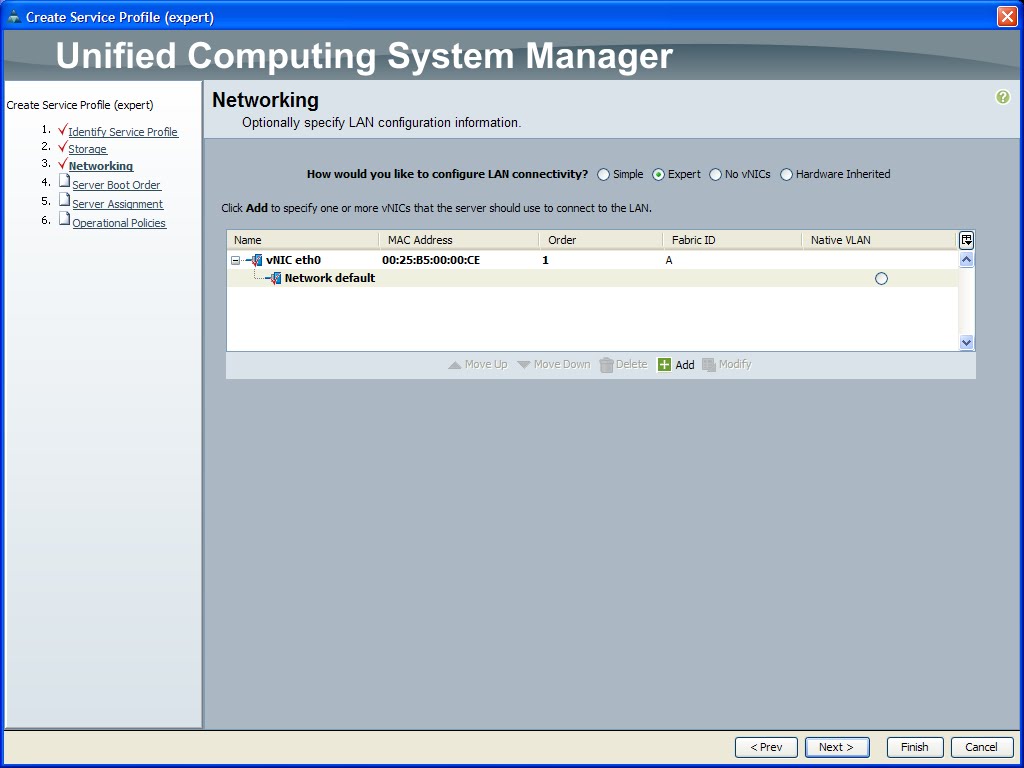
2. Right-click on the Service Profiles node and select Create Service Profile (expert).


3. Name: ESX

4. UUID Assignment: 00000000-0000-0000-0000-000000000001


5. Local Storage: Create a Specific Storage Policy

6. Mode: RAID Mirrored

7. Scrub Policy:

8. How would you like to configure SAN storage?: No vHBAs.


9. How would you like to configure LAN connectivity?: Expert


10. Name: eth0

11. MAC Address Assignment: 00:25:B5:XX:XX:XX

12. MAC Address: 00:25:B5:00:00:CE


13. Boot Policy: Create a Specific Boot Policy


Associate Service Profile to Server:

1. Navigate to the Servers tab.

2. Navigate to Servers -> Service Profiles -> Root.

3. Right-click on the Service Profile Name and select Change Service Profile Association.


4. Server Assignment: Select existing Server.


Create a set of Management IP Pool for external management:

1. The Cisco UCS manager needs a pool of IPs for external access to a server through the following:

a. KVM console
b. Serial over LAN
c. IPMI

So in order to access the console of the blade, a pool of management IPs will need to be defined (172.200.5.230, 231, 232).

2. Navigate to the Admin tab.

3. Navigate to All -> Communication Services -> Management IP Pool (ext-mgmt).

4. Select Create Block of IP Address.


-----------------------------------------------------------------------

The following is a copy and paste of the console output:

% invalid command detected at '^' marker.
UCS01-B# init-system ?
^
% invalid command detected at '^' marker.
UCS01-B# ?
acknowledge Acknowledge
clear Reset functions
commit-buffer Commit transaction buffer
connect Connect to Another CLI
decommission Decommission managed objects
discard-buffer Discard transaction buffer
exit Exit from command interpreter
recommission Recommission Server Resources
remove Remove
scope Changes the current mode
set Set property values
show Show running system information
terminal Set terminal line parameters
top Go to the top mode
up Go up one mode
where Show information about the current mode

UCS01-B# erase configuration
% Invalid command
UCS01-B# erase ?
^
% invalid command detected at '^' marker.
UCS01-B# write erase
% Invalid command
UCS01-B# config
% Invalid command
UCS01-B# remove ?
server Server

UCS01-B# set ?
cli CLI Information

UCS01-B# set cli ?
suppress-field-spillover Suppress Field Spillover
suppress-headers Suppress Table Headers
table-field-delimiter Field Delimiter for Tables

UCS01-B# scope ?
adapter Mezzanine Adapter
chassis Chassis
eth-server Ethernet Server Domain
eth-uplink Ethernet Uplink
fabric-interconnect Fabric Interconnect
fc-uplink FC Uplink
firmware Firmware
host-eth-if Host Ethernet Interface
host-fc-if Host FC Interface
monitoring Monitor the system
org Organizations
security security mode
server Server
service-profile Service Profile
system Systems
vhba vHBA
vnic vNIC

UCS01-B# scope system ?


UCS01-B# scope system
Error: DME is not ready
UCS01-B# scope fabric-interconnect
% Incomplete command
UCS01-B# scope fabric-interconnect ?
a Fabric A
b Fabric B

UCS01-B# scope fabric-interconnect b ?


UCS01-B# scope fabric-interconnect b
Error: DME is not ready
UCS01-B# connect local-mgmt
Cisco UCS 6100 Series Fabric Interconnect

TAC support: http://www.cisco.com/tac

Copyright (c) 2009, Cisco Systems, Inc. All rights reserved.

The copyrights to certain works contained herein are owned by
other third parties and are used and distributed under license.
Some parts of this software may be covered under the GNU Public
License or the GNU Lesser General Public License. A copy of
each such license is available at
http://www.gnu.org/licenses/gpl.html and
http://www.gnu.org/licenses/lgpl.html
UCS01-B(local-mgmt)# erase ?
configuration System configuration

UCS01-B(local-mgmt)# erase configuration ?


UCS01-B(local-mgmt)# erase configuration
All UCS configurations will be erased and system will reboot. Are you sure? (yes/no):

yes
Removing all the configuration. Please wait....
Configurations are cleaned up. Rebooting....
2010 Apr 21 13:49:30 UCS01-B %$ VDC-1 %$ %USER-2-SYSTEM_MSG: no feature-name to add -

clis
2010 Apr 21 13:49:30 UCS01-B %$ VDC-1 %$ %PLATFORM-2-PFM_SYSTEM_RESET: Manual system

restart from Command Line Interface
writing reset reason 9,

INIT: Sending processes the TERM signal
Apr 21 13:49:35 %LIBSYSMGR-3-SIGTERM_FORCE_EXIT Service "Security Daemon" (PID 2895)

is forced exit.

Apr 21 Apr 21 13:49:35 %LIBSYSMGR-3-SIGTERM_FORCE_EXIT Service "vshd" (PID 2817) is

forced exit.

Apr 21 13:49:35 %LIBSYSMGR-3-SIGTERM_FORCE_EXIT Service "vdc_mgr" (PID 2856) is forced

exit.

Apr 21 13:49:35 %LIBSYSMGR-3-SIGTERM_FORCE_EXIT Service "statsclient" (PID 2859) is

forced exit.

Apr 21 13:49:35 %LIBSYSMGR-3-SIGTERM_FORCE_EXIT Service "res_mgr" (PID 2861) is forced

exit.

Apr 21 13:49:35 %LIBSYSMGR-3-SIGTERM_FORCE_EXIT Service "netstack" (PID 2990) is

forced exit.

Apr 21 13:49:35 %LIBSYSMGR-3-SIGTERM_FORCE_EXIT Service "licmgr" (PID 2822) is forced

exit.

Apr 21 13:49:35 %LIBSYSMGR-3-SIGTERM_FORCE_EXIT Service "l3vm" (PID 2908) is forced

exit.

Apr 21 13:49:35 %LIBSYSMGR-3-SIGTERM_FORCE_EXIT Service "icmpv6" (PID 2989) is forced

exit.

Apr 21 13:49:35 %LIBSYSMGR-3-SIGTERM_FORCE_EXIT Service "ascii-cfg" (PID 2891) is

forced exit.

Apr 21 13:49:35 %LIBSYSMGR-3-SIGTERM_FORCE_EXIT Service "adjmgr" (PID 2958) is forced

exit.

Apr 21 13:49:36 %SYSMGR-3-SHUTDOWN_OVER The System Manager is shutting down now.
Apr 21 13:49:36 %SYSMGR-2-RESTART_SYSTEM_LOG We will be restarting system soon for vdc

4.
Apr 21 13:49:36 %SYSMGR-2-RESTART_SYSTEM_LOG We will be restarting system soon for vdc

3.
Apr 21 13:49:36 %SYSMGR-2-RESTART_SYSTEM_LOG We will be restarting system soon for vdc

2.
Apr 21 13:49:36 %SYSMGR-2-RESTART_SYSTEM_LOG We will be restarting system soon for vdc

1.
Unexporting directories for NFS kernel daemon...done.
Stopping NFS kernel daemon: rpc.mountd rpc.nfsddone.
Unexporting directories for NFS kernel daemon...
done.
Stopping portmap daemon: portmap.
Stopping kernel log daemon: klogd.
Sending all processes the TERM signal... done.
Sending all processes the KILL signal... done.
Unmounting remote filesystems... done.
Deactivating swap...done.
Unmounting local filesystems...done.
mount: you must specify the filesystem type
Starting reboot command: reboot
Rebooting...
Restarting system.


----------------------------


Booting kickstart image: bootflash:/installables/switch/ucs-6100-k9-kickstart.4
.0.1a.N2.1.2d.bin....
.......................................................................Image ve
rification OK

Starting kernel...
Usage: init 0123456SsQqAaBbCcUu
INIT: version 2.85 booting
Starting UCS6120XP POST...
Executing Mod 1 1 SEEPROM Test......done
Executing Mod 1 1 GigE Port Test.......done
Executing Mod 1 1 Inband GigE Test.....done
Executing Mod 1 1 NVRAM Test....done
Executing Mod 1 1 PCIE Test..............................done
Mod 1 1 Post Completed Successfully
Mod 2 Post Completed Successfully
POST is completed
Creating /callhome..
Mounting /callhome..
Creating /callhome done.
Callhome spool file system init done.
Checking all filesystems.....rrr done.
Checking NVRAM block device ... done
The startup-config won't be used until the next reboot.
.
Loading system software
Uncompressing system image:

bootflash:/installables/switch/ucs-6100-k9-system.4.0.1a.N2.1.2d.bin

Loading plugin 0: core_plugin...
plugin_link_to_exec_path: plugin_path = /isan/plugin/0, tar_log =

/isan/plugin_extract_log/0
Loading plugin 1: eth_plugin...
plugin_link_to_exec_path: plugin_path = /isan/plugin/1, tar_log =

/isan/plugin_extract_log/1
plugin_file_is_excluded_from_exec_path: /boot/ is excluded from linking
plugin_file_is_excluded_from_exec_path: /boot/lib/ is excluded from linking
plugin_file_is_excluded_from_exec_path: /boot/lib/libplugin_sysreg.so is excluded from

linking
plugin_file_is_excluded_from_exec_path: /boot/lib/libplugin_sysreg.so.0.0.0 is

excluded from linking
plugin_file_is_excluded_from_exec_path: /boot/lib/libplugin_sysreg.so.0 is excluded

from linking
plugin_file_is_excluded_from_exec_path: /boot/etc/ is excluded from linking
plugin_file_is_excluded_from_exec_path: /boot/etc/plugin_exclude.conf is excluded from

linking
plugin_file_is_excluded_from_exec_path: /boot/ is excluded from linking
plugin_file_is_excluded_from_exec_path: /boot/lib/ is excluded from linking
plugin_file_is_excluded_from_exec_path: /boot/lib/libplugin_sysreg.so is excluded from

linking
plugin_file_is_excluded_from_exec_path: /boot/lib/libplugin_sysreg.so.0.0.0 is

excluded from linking
plugin_file_is_excluded_from_exec_path: /boot/lib/libplugin_sysreg.so.0 is excluded

from linking
plugin_file_is_excluded_from_exec_path: /boot/etc/ is excluded from linking
plugin_file_is_excluded_from_exec_path: /boot/etc/plugin_exclude.conf is excluded from

linking
Loading plugin 2: fc_plugin...
plugin_link_to_exec_path: plugin_path = /isan/plugin/2, tar_log =

/isan/plugin_extract_log/2
plugin_file_is_excluded_from_exec_path: /boot/ is excluded from linking
plugin_file_is_excluded_from_exec_path: /boot/lib/ is excluded from linking
plugin_file_is_excluded_from_exec_path: /boot/lib/libplugin_sysreg.so is excluded from

linking
plugin_file_is_excluded_from_exec_path: /boot/lib/libplugin_sysreg.so.0.0.0 is

excluded from linking
plugin_file_is_excluded_from_exec_path: /boot/lib/libplugin_sysreg.so.0 is excluded

from linking
plugin_file_is_excluded_from_exec_path: /boot/etc/ is excluded from linking
plugin_file_is_excluded_from_exec_path: /boot/etc/plugin_exclude.conf is excluded from

linking
plugin_file_is_excluded_from_exec_path: /boot/ is excluded from linking
plugin_file_is_excluded_from_exec_path: /boot/lib/ is excluded from linking
plugin_file_is_excluded_from_exec_path: /boot/lib/libplugin_sysreg.so is excluded from

linking
plugin_file_is_excluded_from_exec_path: /boot/lib/libplugin_sysreg.so.0.0.0 is

excluded from linking
plugin_file_is_excluded_from_exec_path: /boot/lib/libplugin_sysreg.so.0 is excluded

from linking
plugin_file_is_excluded_from_exec_path: /boot/etc/ is excluded from linking
plugin_file_is_excluded_from_exec_path: /boot/etc/plugin_exclude.conf is excluded from

linking
121316+1 records in
121316+1 records out
ethernet end-host mode on CA
FC end-host mode on CA
n_port virtualizer mode.
---------------------------------------------------------------
ethernet end-host mode
INIT: Entering runlevel: 3
Exporting directories for NFS kernel daemon...done.
Starting NFS kernel daemon:rpc.nfsd.
rpc.mountddone.

Setting envvar: SYSMGR_SERVICE_NAME to muxif_service
Set envvar SYSMGR_SERVICE_NAME to muxif_service
/isan/bin/muxif_config: argc:2
muxif_init....vacl: ret: 0
Set name-type for VLAN subsystem. Should be visible in /proc/net/vlan/config
Added VLAN with VID == 4042 to IF -:muxif:-
---------------------
enabled fc feature
---------------------
pss_store_sys_list: handle 0x831c158 vdc 1 err 0x0
2010 Apr 21 13:53:22 %$ VDC-1 %$ %KERN-2-SYSTEM_MSG: Starting kernel... - kernel
2010 Apr 21 13:53:38 %$ VDC-1 %$ %USER-2-SYSTEM_MSG: no feature-name to add - clis
Executing Port Power On Tests...........System is coming up ... Please wait ...
.System is coming up ... Please wait ...
Done
System is coming up ... Please wait ...
2010 Apr 21 13:54:53 %$ VDC-1 %$ %VDC_MGR-2-VDC_ONLINE: vdc 1 has come online
System is coming up ... Please wait ...
nohup: appending output to `nohup.out'

---- Basic System Configuration Dialog ----

This setup utility will guide you through the basic configuration of
the system. Only minimal configuration including IP connectivity to
the Fabric interconnect and its clustering mode is performed through these steps.

Type Ctrl-C at any time to abort configuration and reboot system.
To back track or make modifications to already entered values,
complete input till end of section and answer no when prompted
to apply configuration.


Enter the configuration method. (console/gui) ? console

Enter the setup mode; setup newly or restore from backup. (setup/restore) ? setup

You have chosen to setup a new Fabric interconnect. Continue? (y/n): y

Enter the password for "admin":
Confirm the password for "admin":
password should be atleast 8 characters

Enter the password for "admin":
Confirm the password for "admin":
it is based on a dictionary word

Enter the password for "admin":
Confirm the password for "admin":
Admin password confirmation failed. Please try again.

Enter the password for "admin":
Confirm the password for "admin":

Do you want to create a new cluster on this Fabric interconnect (select 'no' for

standalone setup or if you want this Fabric interconnect to be added to an existing

cluster)? (yes/no) [n]: no

Enter the system name: UCSDemo

Physical Switch Mgmt0 IPv4 address : 172.200.5.131

Physical Switch Mgmt0 IPv4 netmask : 255.255.255.0

IPv4 address of the default gateway : 172.200.5.1

Configure the DNS Server IPv4 address? (yes/no) [n]: y

DNS IPv4 address : 172.200.1.5

Configure the default domain name? (yes/no) [n]: unislumin.com

Configure the default domain name? (yes/no) [n]: y

Default domain name : unislumin.com

Following configurations will be applied:

Switch Fabric=A
System Name=UCSDemo
Physical Switch Mgmt0 IP Address=172.200.5.131
Physical Switch Mgmt0 IP Netmask=255.255.255.0
Default Gateway=172.200.5.1
DNS Server=172.200.1.5
Domain Name=unislumin.com

Apply and save the configuration (select 'no' if you want to re-enter)? (yes/no): y
Applying configuration. Please wait.

Configuration file - Ok


Cisco UCS 6100 Series Fabric Interconnect
UCSDemo-A login: admin
Password:
Login incorrect

UCSDemo-A login: admin
Password:
Cisco UCS 6100 Series Fabric Interconnect

TAC support: http://www.cisco.com/tac

Copyright (c) 2009, Cisco Systems, Inc. All rights reserved.

The copyrights to certain works contained herein are owned by
other third parties and are used and distributed under license.
Some parts of this software may be covered under the GNU Public
License or the GNU Lesser General Public License. A copy of
each such license is available at
http://www.gnu.org/licenses/gpl.html and
http://www.gnu.org/licenses/lgpl.html
UCSDemo-A# ^C
UCSDemo-A#